







Business processes are too often inefficient because there are still too many repetitive tasks that rely on human effort. An employee manually requests leave, someone reviews it, it’s approved by a manager, a record is updated by HR, and a leave request email is sent out. A supplier invoice is received; finance checks it, approves it, makes a record of their action and informs the relevant person. There is a new employee on board, and multiple teams have tasks to finish recruitment.
These activities are not at all difficult. The issue is they come with many steps, people, documents and notifications. That’s where Microsoft SharePoint Services can make a difference.
With SharePoint as a repository for business information and Power Automate as the workflow engine, many repetitive tasks can be automated in Microsoft 365. Rather than working with email reminders, spreadsheets or follow up activities, teams can create processes that get information to the right person at the right time.
This guide discusses how SharePoint automation and Power Automate work together, what processes are suitable for automation, and creating an automated approval workflow with SharePoint.
What Is SharePoint and Where Does It Fit into Business Processes?
SharePoint is a Microsoft platform for storage, organization, sharing and management of business information. SharePoint can be used as a data and document platform for automation. SharePoint sites, lists and libraries, documents and permissions can be used to manage information like:
- Employee records
- Purchase requests
- Customer documents
- Project information
- Policies and procedures
- Invoices
- Contracts
- Leave requests
- Onboarding tasks
What Is Power Automate and What Does It Do?
Microsoft Power Automate is a workflow and automation platform provided by Microsoft that enables organizations to automate processes between applications and services.
In simple terms:
SharePoint stores and manages the information. Power Automate moves the process forward.
A Power Automate workflow can respond to an event and then perform one or more actions.
For example:
New purchase request → Notify manager → Request approval → Record decision → Update SharePoint → Notify requester
Instead of employees manually coordinating every step, the workflow handles the repetitive transitions.
Power Automate can be used for activities such as:
- Sending notifications
- Starting approval processes
- Updating SharePoint records
- Creating tasks
- Moving information between systems
- Triggering actions when information changes
- Sending reminders
- Routing requests to appropriate people
The important point is that automation should not simply automate activity for the sake of automation. It should improve a process that is repetitive, predictable, and clearly defined.
How SharePoint and Power Automate Work Together
The easiest way to understand their relationship is to think of SharePoint as the workspace and information repository, while Power Automate acts as the process coordinator.
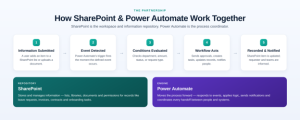
A typical SharePoint automation might look like this:
- Information is submitted
A user adds a new item to a SharePoint list or uploads a document.
- Power Automate detects the event
The workflow starts when the defined trigger occurs.
- The workflow evaluates the information
Power Automate checks conditions such as department, amount, status, or request type.
- The workflow acts
It may send an approval request, create a task, update a record, or notify someone.
- The result is recorded
The SharePoint item can be updated with the outcome.
- People are informed
The requester or relevant teams receive a notification.
This creates a connected workflow rather than a collection of disconnected manual activities.
Business Processes You Can Automate with SharePoint
Not every process needs automation. The strongest candidates usually involve repetitive tasks, predictable decisions, multiple handoffs, or frequent notifications.
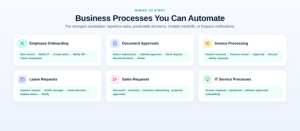
Common examples include:
- Employee Onboarding
When HR creates a new employee record, automation can help initiate onboarding activities.
For example:
New employee record → Notify IT → Create onboarding tasks → Notify HR → Track completion
The workflow can help coordinate activities such as account preparation, equipment requests, documentation, and orientation tasks.
- Document Approvals
Documents often require review from one or more stakeholders.
A workflow can automatically:
- Detect when a document is submitted
- Identify the appropriate approver
- Send an approval request
- Record the decision
- Update the document status
- Notify the requester
- Invoice Processing
Finance teams can use automation to route invoices through defined approval processes.
For example:
Invoice received → Finance review → Approval → Record Decision → Notify requester
The exact workflow should reflect the organization’s finance controls and approval policies.
- Leave Requests
Employees can submit leave requests through a structured SharePoint process.
The workflow can:
- Capture the request
- Notify the manager
- Wait for approval or rejection
- Update the request status
- Notify the employee
- Sales Requests
Sales teams can automate processes involved:
- Discount approvals
- Contract reviews
- Customer onboarding
- Proposal approvals
- Internal sales requests
- IT Service Processes
IT teams can automate routine workflows such as:
- Access requests
- Equipment requests
- Software approvals
- New-user onboarding
- Internal service requests
Step-by-Step: Create a SharePoint Approval Workflow
Let’s use a simple example: employee purchase requests.
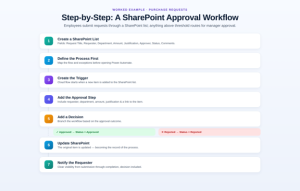
Imagine that employees submit purchase requests through a SharePoint list. Every request above a defined threshold must be approved by a manager.
Step 1: Create a SharePoint List
Start with a SharePoint list containing fields such as:
- Request Title
- Requester
- Department
- Amount
- Business Justification
- Approver
- Status
- Approval Comments
Set the initial status to something such as Pending Approval. The objective is to create a consistent data structure rather than relying on free-form emails.
Step 2: Define the Process Before Automating It
Before opening Power Automate, document the actual business process.
For example:
Employee submits request → Manager reviews → Manager approves/rejects → Request status is updated → Employee receives notification
Also define exceptions.
What happens if:
- The manager does not respond?
- The request is rejected?
- The amount exceeds another threshold?
- Is the approver unavailable?
- Is the information missing?
Automation works best when the underlying process is already clear.
Step 3: Create the Power Automate Trigger
Create a cloud flow that starts when a new item is added to the SharePoint list.
The trigger tells Power Automate:
“When a new purchase request appears, start this workflow.”
This connects the SharePoint data layer with the automation layer.
Step 4: Add the Approval Step
Add an approval action and specify the person responsible for reviewing the request.
The approval message should contain useful information, such as:
- Requester
- Department
- Amount
- Business justification
- Link to the SharePoint item
Avoid forcing approvers to search for information elsewhere.
Step 5: Add a Decision
The workflow now needs to respond differently depending on the approval result.
For example:
If approved → Update status to Approved
If rejected → Update status to Rejected
The workflow can also capture approval comments so that the requester understands why a decision was made.
Step 6: Update SharePoint
After the decision, Power Automate updates the original SharePoint item.
For an approved request:
Status = Approved
For a rejected request:
Status = Rejected
The SharePoint list therefore becomes a record of the process.
Step 7: Notify the Requester
Finally, send a notification to the person who submitted the request.
For example:
Your purchase request has been approved.
Or:
Your purchase request has been rejected. Please review the approval comments.
The result is a simple automated approval workflow with clear visibility from submission through completion.
Benefits of SharePoint and Power Automate Automation
- Less Manual Administration

Routine activities such as sending reminders, updating statuses, and notifying employees can be automated.
- Faster Process Execution
Requests can move automatically from one stage to another instead of waiting for someone to manually forward an email.
- Better Process Visibility
A structured SharePoint list can provide a clearer view of request status than scattered emails and spreadsheets.
- More Consistent Workflows
Automation can enforce a defined sequence of steps, helping reduce process variation.
- Improved Accountability
Approval records, timestamps, statuses, and comments can make it easier to understand what happened during a process.
- Easier Scaling
As request volumes increase, automation can help teams handle repetitive workflows without adding the same amount of administrative effort.
Practical Microsoft 365 Automation Use Cases by Department
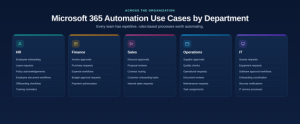
- HR
HR teams can automate:
- Employee onboarding
- Leave requests
- Policy acknowledgements
- Employee document workflows
- Offboarding checklists
- Training reminders
- Finance
Finance teams can automate:
- Invoice approvals
- Purchase requests
- Expense-related workflows
- Budget approval requests
- Payment authorization processes
- Sales
Sales teams can automate:
- Discount approvals
- Proposal reviews
- Contract routing
- Customer onboarding tasks
- Internal sales requests
- Operations
Operations teams can use automation for:
- Supplier approvals
- Quality checks
- Operational requests
- Document reviews
- Maintenance requests
- Task assignments
- IT
IT departments can automate:
- Access requests
- Equipment requests
- Software approval workflows
- Employee onboarding coordination
- Security-related notifications
- IT service processes
The specific workflow should always be designed around the organization’s policies, permissions, and system architecture.
Common Mistakes When Building SharePoint Workflows
Automation can create problems when a poorly designed manual process is simply converted into a digital workflow.
- Automating an Unclear Process
If nobody agrees on who should approve something or what happens after rejection, automation will not solve the underlying problem.
Best practice: Document the process first.
- Creating Overly Complex Flows
Adding unnecessary conditions, branches, and actions can make workflows difficult to maintain.
Best practice: Start with the simplest workflow that solves the business problem.
- Ignoring Exceptions
Real processes rarely follow the happy path every time.
Best practice: Plan for rejected requests, missing information, unavailable approvers, duplicate submissions, and failures.
- Poor Data Design
If SharePoint columns are inconsistent or poorly structured, workflows can become unnecessarily complicated.
Best practice: Define the required fields, data types, statuses, and ownership before building the flow.
- Using Automation Without Ownership
Someone needs to monitor important workflows and respond when something fails.
Best practice: Establish workflow ownership, monitoring, and escalation procedures.
- Forgetting Permissions and Governance
Automation may involve business-sensitive information.
Best practice: Review SharePoint permissions, access controls, data handling requirements, and organizational governance before deploying workflows.
Best Practices for Reliable SharePoint Automation
For sustainable SharePoint workflows, consider these principles:
- Start with one repetitive process. Don’t automate an entire department at once.
- Define clear triggers and outcomes. Every workflow should have a specific starting point and desired result.
- Keep data structured. Use appropriate SharePoint columns instead of relying on information hidden in emails or documents.
- Design for exceptions. Decide what happens when approvals are rejected, delayed, or incomplete.
- Make notifications useful. Include enough context for users to act.
- Use meaningful statuses. For example: Draft, Submitted, Pending Approval, Approved, Rejected, and Completed.
- Test with realistic scenarios. Test both successful and failure scenarios before deployment.
- Document ownership. Define who maintains the workflow when business requirements change.
- Review permissions. Ensure users only have access to information they are authorized to see.
- Measure the outcome. Track whether automation reduces processing time, manual effort, or errors.
Frequently Asked Questions
- What is SharePoint automation?
SharePoint automation is the use of automated workflows and connected Microsoft 365 services to reduce manual work around SharePoint-based information, documents, and business processes.
- What is the role of Power Automate in SharePoint?
Power Automate provides workflow logic. It can respond to SharePoint events and perform actions such as sending notifications, requesting approvals, updating records, and coordinating process steps.
- Can SharePoint and Power Automate automate approval workflows?
Yes. A common pattern is to trigger a Power Automate workflow when a SharePoint item or document is submitted, send it for approval, capture the decision, update SharePoint, and notify the requester.
- What business processes can be automated?
Common candidates include employee onboarding, leave requests, document approvals, invoice processing, purchase requests, access requests, contract reviews, and internal notifications.
- Is Power Automate only useful for SharePoint?
No. Power Automate can connect workflows across multiple Microsoft 365 services and other supported systems. SharePoint is one common component in Microsoft 365 business process automation.
- How do I know whether a process should be automated?
Start with repetitive, rules-based processes involving frequent handoffs, approvals, notifications, or manual data entry. Processes with unclear rules or constantly changing requirements may need to be standardized before automation.
- What should I do before building a Power Automate workflow?
Record the current process, determine the stakeholders, establish the trigger and outcome, define the data to be captured, determine exceptions and assign ownership of the process.
Conclusion
SharePoint and Power Automate can turn repetitive Microsoft 365 processes into structured, trackable workflows. SharePoint is where you can arrange information and documents, and Power Automate is what coordinates what happens to advance a process. Automation is not only the largest opportunity. It’s defining the appropriate tasks to automate.
Begin with a repetitive business process like an employee onboarding workflow, invoice approval, leave request, document review or IT access request. Outline the current process, pinpointing any repetitive tasks people perform, and what can be automated.
Then evaluate how SharePoint automation and Power Automate could connect those steps into a simpler, more reliable workflow. A small, well-designed automation can be a practical first step toward broader Microsoft 365 automation and business process transformation.
Sphinx helps organizations design and implement practical SharePoint solutions, workflow automation, and Microsoft 365 processes aligned with their operational requirements. If your organization needs to modernize existing SharePoint workflows, build new automated processes, or extend SharePoint capabilities, you can Hire SharePoint developer expertise to support development, integration, customization, and ongoing improvements.